
iphone开发学习笔记
iphone开发学习笔记
Iphone学习笔记
iOS学习问题与笔记1,类的实例化,new,alloc
用new 的方式创建实例,相当于[[a alloc] init]
而alloc则只需要创建实例,不需要调用init方法
2,NSString 是Foundation框架中的:
1)NSString 是不可变字符串,是对象,相当于java的String对象;
它有个子类是NSMutableString,为可变字符串,也有appendString方法,相当于java的StringBuffer类;
2)比较两个字符串的内容是否相等,应该用isEqualString方法或者compare方法,而比较两个字符串是否为同一个对象则用==;
3,NSArray是cocoa类,存储对象有序列表。
1)它只能存储Objcect-C的对象,而不能存储如int,float,enum,struct,或者NSArray的随机指针。
2)不能存储nil(对象的零值或者NULL值),其实它不是不能存,而是当在后面添加了一个nil时,就代表列表结束;
读取unix系统下所以图片路径小例子:
int main(int argc, char *argv[])
{
//可以暂时不需要这个池
//NSAutoreleasePool *pool;
//pool = [[NSAutoreleasePool alloc] init];
NSFileManager * fileManager;
//single model
fileManager = [NSFileManager defaultManager];
//指定主目录,在unix系统中有一个代表主目录的速记符号:~,而字符串类方法stringByExpandingTildeInPath可以将其转为具体目录
NSString *home;
home=[@”~” stringByExpandingTildeInPath];
NSLog(@”homePath is %@”,home);
//装入文件管理器
NSDirectoryEnumerator *direnum;
direnum = [fileManager enumeratorAtPath:home];
//声明定义容量为42,在任何情况下都可以这样写,因为容量是不会限制这个数组的大小的
NSMutableArray *filePathes;
filePathes = [NSMutableArray arrayWithCapacity:42];
NSString *fileName;
while (fileName = [direnum nextObject]) {
if([[fileName pathExtension] isEqualTo:@”jpg”]){
[filePathes addObject:fileName];
}
}
NSEnumerator *enumFile;
enumFile=[filePathes objectEnumerator];
NSString *outFilePath;
while (outFilePath=[enumFile nextObject]) {
NSLog(@”outFileName is %@”,outFilePath);
}
return (0);
}
其实完全可以不需要再设置一个枚举器类去接收遍历,完全可以直接用filePathes这个数组去遍历。
看如下:
int main(int argc, char *argv[])
{
NSFileManager * fileManager;
//single model
fileManager = [NSFileManager defaultManager];
//指定主目录,在unix系统中有一个代表主目录的速记符号:~,而字符串类方法stringByExpandingTildeInPath可以将其转为具体目录
NSString *home;
home=[@”~” stringByExpandingTildeInPath];
NSLog(@”homePath is %@”,home);
NSDirectoryEnumerator *direnum;
direnum = [fileManager enumeratorAtPath:home];
//声明定义容量为42,在任何情况下都可以这样写,因为容量是不会限制这个数组的大小的
int main(int argc, char *argv[])
{
NSMutableArray *filePathes;
filePathes = [NSMutableArray arrayWithCapacity:42];
NSString *fileName;
while (fileName = [direnum nextObject]) {
if([[fileName pathExtension] isEqualTo:@”jpg”]){
[filePathes addObject:fileName];
}
}
NSString *outFilePath;
for (outFilePath in filePathes) {
NSLog(@”outFileName is %@”,outFilePath);
}
return (0);
}
iphone开发相关知识:
一,重要基础
cocoa touch是以接口的形式组建类,可以说叫Controler
xib文件:相当于画面文件,在这里可以随意设计界面,放上想要的控件。
每个控制器类都是成对出现的,有a.h就有a.m,一个接口,一个实现。
1,xib,a.h,a.m是如何通信联接的呢?
入口main.m文件的main方法进行设置delegate,而delegate用来帮助传输iphone唯一的应用程序实例UIApplication实例。
而在delegate文件里设置传入了具体的UIViewController实例,可以将此展示给rootView.
而在具体的ViewController中定义了输出口,如下声明:
@property(nonatomic,retain) IBOutlet UITextField *userNameField;
然后再到xib文件中去进行输出口的联接。
而面板中的按扭点击事件也是通过在xib的inter builder中进行联接。
2,在textField中输完以后如何让键盘消失?
有两种方式:
1)在textField的did end on exit事件上联接一个方法如下:
-(IBAction)textFieldDoneEditing:(id)sender{
[sender resignFirstResponder];
}
这种方法只有在用户点了键盘的done(确认)键以后才会关闭键盘,体验不是特别好;
2)第二种方法是苹果公司要求的点击应用没有活动控件的任何地方都应导致键盘消失,这才是用户体验比较好的一种方式;
怎么实现呢?其实答案非常简单。我们的视图控制器有一个view属性,它继承自UIViewController,而这个view属性对应于xib文件中的view图标,这个view指向了xib文件的UIView实例,而这个实例涵盖了整个iphone窗口。所以,如果能够将这个view进行控制,那么就可以为所欲为了。
我们打开interface builder,我们可以看到其属性栏的第二个子栏下面,有一个Customer class,可以更改的(UIController是UIView的子类)。
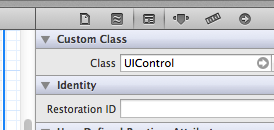
所以我们可以将其改为UIController类。如下:
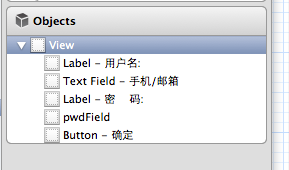
然后我们可以打开它的事件连接,对touch down事件进行连接,连接方法如下:
-(IBAction)backgroupTap:(id)sender{
//在非第一响应者的控件上调用第一响应者方法是绝对安全的
[userNameField resignFirstResponder];
[passwordFiled resignFirstResponder];
}
3,对textField的keyboard属性可以设置键盘显示格式(是全数字还是全英文,还是带特殊字符的键盘)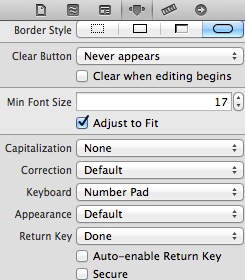
4,实现在当前的view页面添加子view,并显示在当前的view上
示例代码:
WFCityListViewController *cityListController=[[[WFCityListViewControlleralloc] initWithNibName:@”WFCityListViewController”bundle:nil] autorelease];
//self.cityListView是当前controllerView中的一个空view,用以存放待添加的subView
[self.cityListView addSubview:[cityListController view]];
5,实现view的拖动event(因view本身没有拖动的这个event)
实现view有event方法有两种方式,第一种:
1)//一般情况下这段代码放在init或者viewDidload方法下,这段代码用来绑定一个方法
UISwipeGestureRecognizer *tapGR = [[UISwipeGestureRecognizeralloc] initWithTarget:selfaction:@selector(handleTap:)];
tapGR.direction = UISwipeGestureRecognizerDirectionRight;
// tapGR.delegate = self;
[self.cityListViewaddGestureRecognizer:tapGR];
[tapGR release];
2)//对应的绑定方法必须具有固定的参数,这个方法用于做移动view的操作
- (void) handleTap:(UISwipeGestureRecognizer*)swipeRecognizer{
[UIViewbeginAnimations:@”showCityList”context:nil];
[UIViewsetAnimationRepeatCount:1];
[UIViewsetAnimationDuration:0.3];
[UIViewsetAnimationCurve:UIViewAnimationCurveEaseIn];
self.cityListView.frame = CGRectMake(320.0, 0.0, 285.0, 460.0);
[UIViewcommitAnimations];
}
第二种,直接在view的.m文件里重写touchesBegan,touchesMoved 方法SIAM:
- (void) touchesBegan:(NSSet *)touches withEvent:(UIEvent *)event {
CGPoint pt = [[touches anyObject] locationInView:self.cityListView];
startLocation = pt;
[[self.cityListView superview] bringSubviewToFront:self.cityListView];
}
- (void) touchesMoved:(NSSet *)touches withEvent:(UIEvent *)event
{
[UIViewbeginAnimations:@”showPromotion”context:nil];
[UIViewsetAnimationRepeatCount:1];
[UIViewsetAnimationDuration:0.3];
[UIViewsetAnimationCurve:UIViewAnimationCurveEaseIn];
self.cityListView.frame = CGRectMake(320, 0.0, 285.0, 460.0);
[UIViewcommitAnimations];
}
二,下节,添加滑块与标签、实现开关,按扭和分段控件、实现操作表和警报、美化按钮、管理内存
三,tabelView的用法
1,设置自动换行及自适应文字与label,让文字顶格显示
// UILabel *lineLabel = [[UILabel alloc] initWithFrame:CGRectMake(65, 0, 90,80)];// lineLabel.font = [UIFont systemFontOfSize:11];
// lineLabel.backgroundColor = [[UIColor alloc] initWithRed:184 green:0 blue:46 alpha:1];
// //默认情况下不设置它会在有空格的字符后自动换行,设置了就不自动换行
// lineLabel.lineBreakMode = UILineBreakModeCharacterWrap;
// //设置自动换行
// lineLabel.numberOfLines=0;
//设置文字顶格自适应
UILabel *lineLabel = [[UILabel alloc] initWithFrame:CGRectMake(0,0,0,0)];
[lineLabel setNumberOfLines:0];
// lineLabel.font = [UIFont fontWithName:@”Arial” size:11];
// UIFont *font = [UIFont systemFontOfSize:11];
// CGSize size = CGSizeMake(90,80);
NSString *s = course.courseName;
//使用这个就代表文字与label大小自动适应,这个必须依靠字体大小,如果设置小了,照样不会顶格
// CGSize labelsize = [s sizeWithFon:font constrainedToSize:size lineBreakMode:UILineBreakModeWordWrap];
// [lineLabel setFrame:CGRectMake(65,10, labelsize.width, labelsize.height)];
[cell.contentView addSubview:lineLabel]; cell.imageView.image = [UIImage imageNamed:@”Icon-Small-50.png”];
